With the Payroll Management feature in the KPay App, you can now create new employee profiles and manage them more efficiently. Here's how:
Product Tips
How to Apply for a KPay Business Account?

12 December 2024

7 min read


KPay Editorial Team

Adding Employee Profile via KPay Dashboard
On the platform, you have 2 ways to add new profile.
Method 1: Send an invitation link to employee
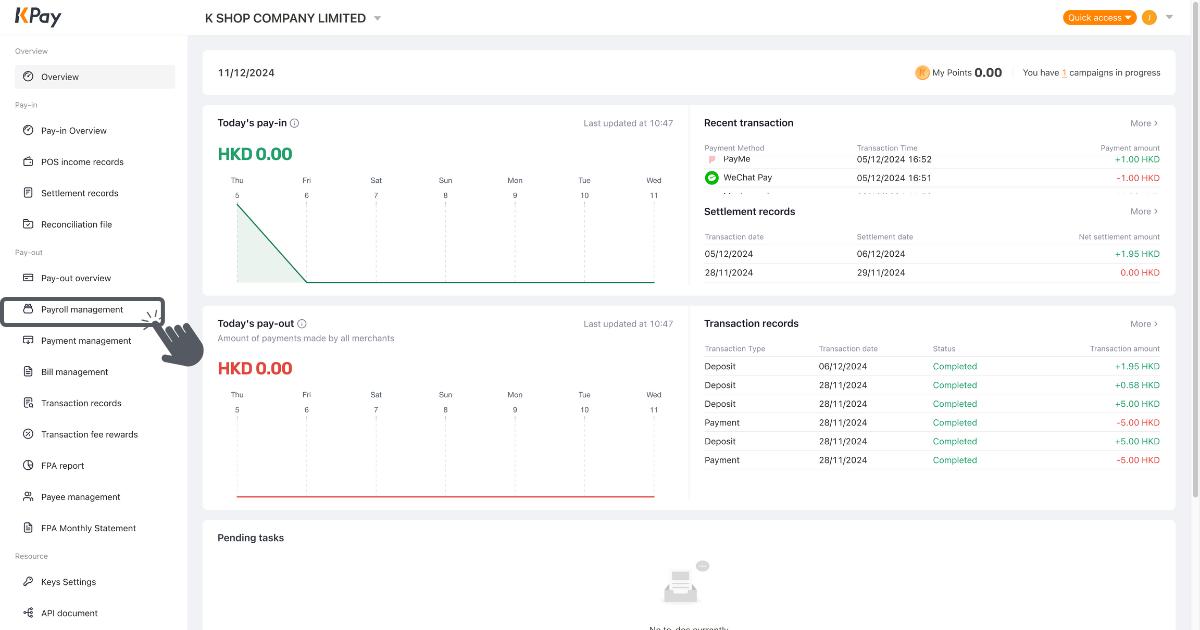
Step 1: Log in to online one-stop pay-in and pay-out management platform. Click “Payroll management” on the left column.
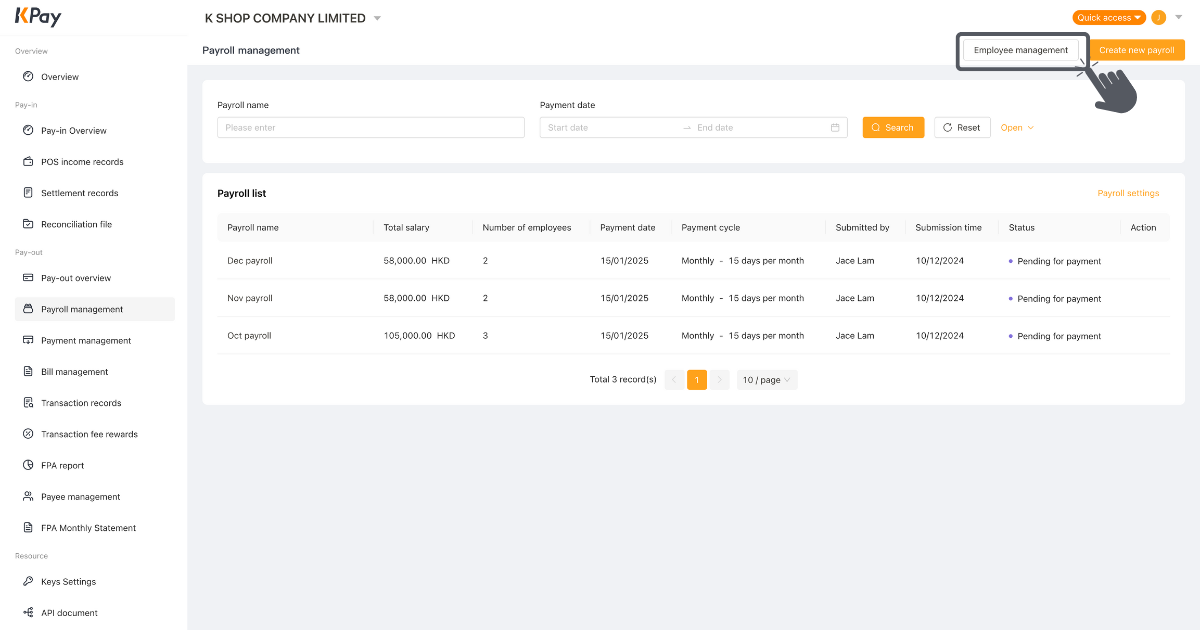
Step 2: Click “Employee management” on the top right corner. If you are adding new profile for the first time, click “Add employee” in the middle.
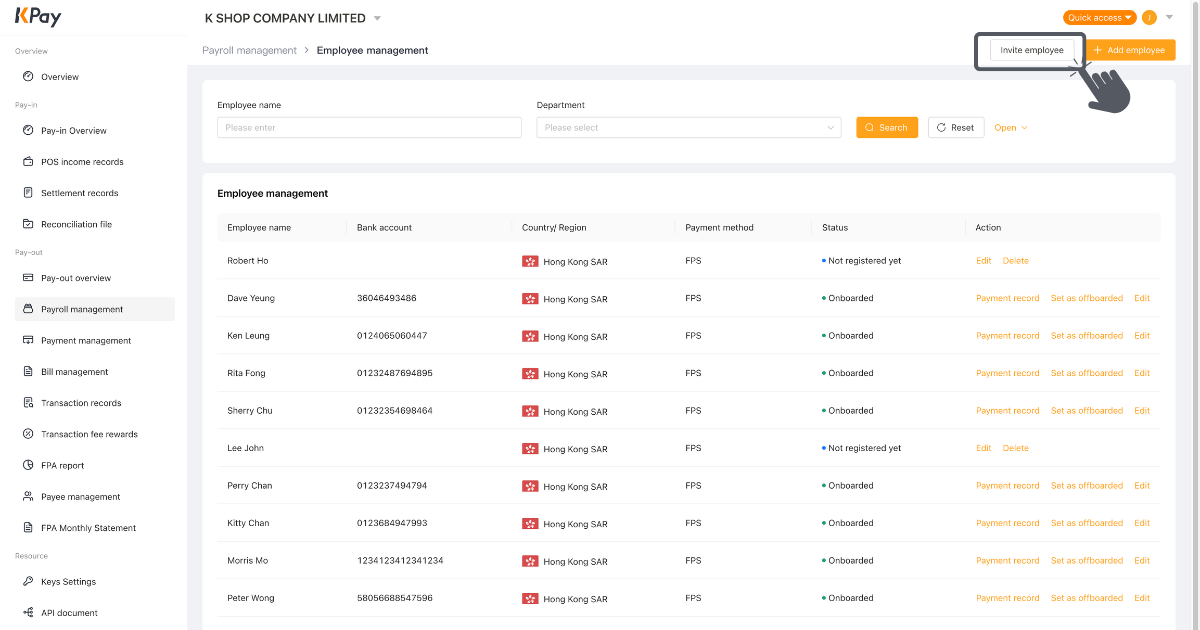
Step 3: Click “Invite employee”.
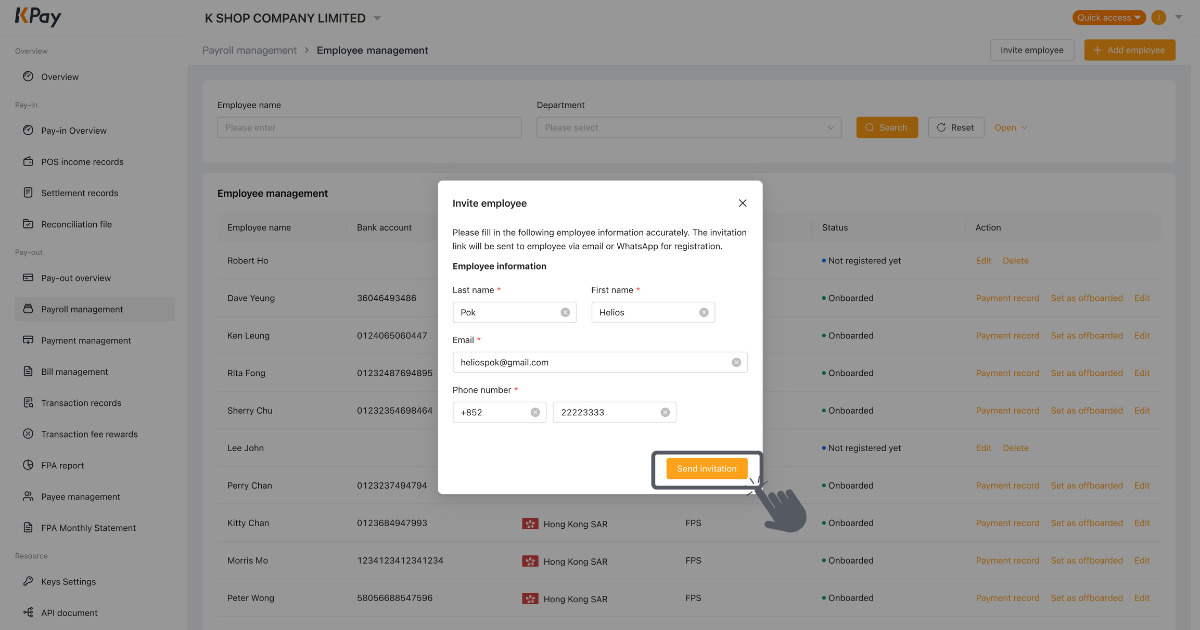
Step 4: Fill in the required information and click “Send invitation”.
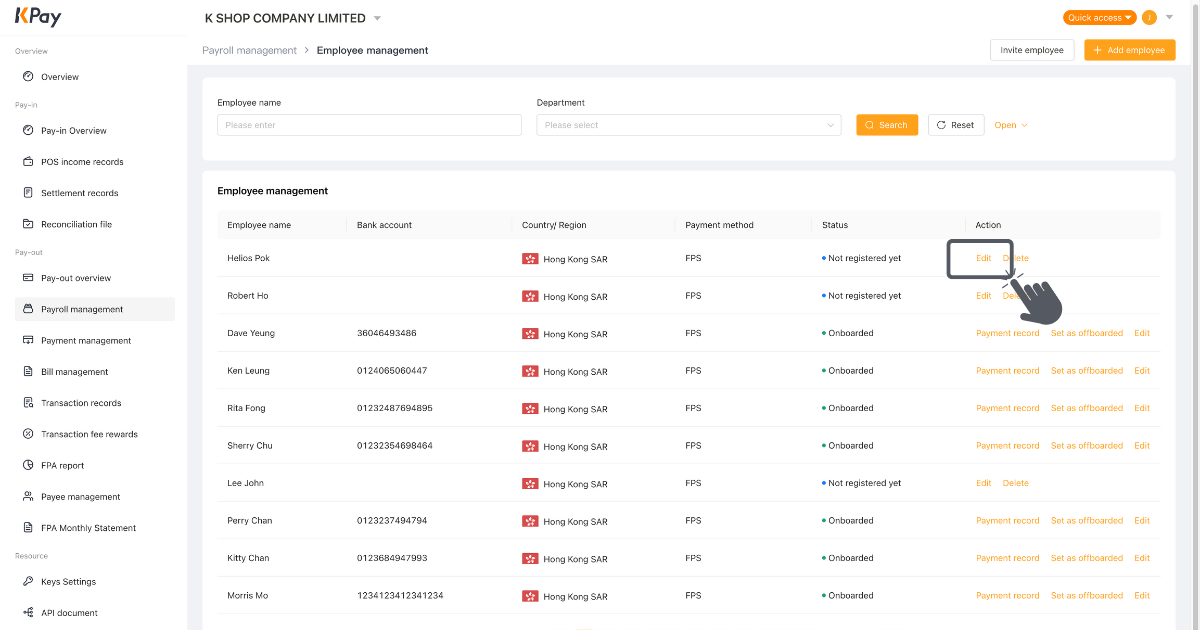
Step 5: The invitation link is valid for 24 hours. If registration is not made in time, you can click “Edit” on the employee profile row.
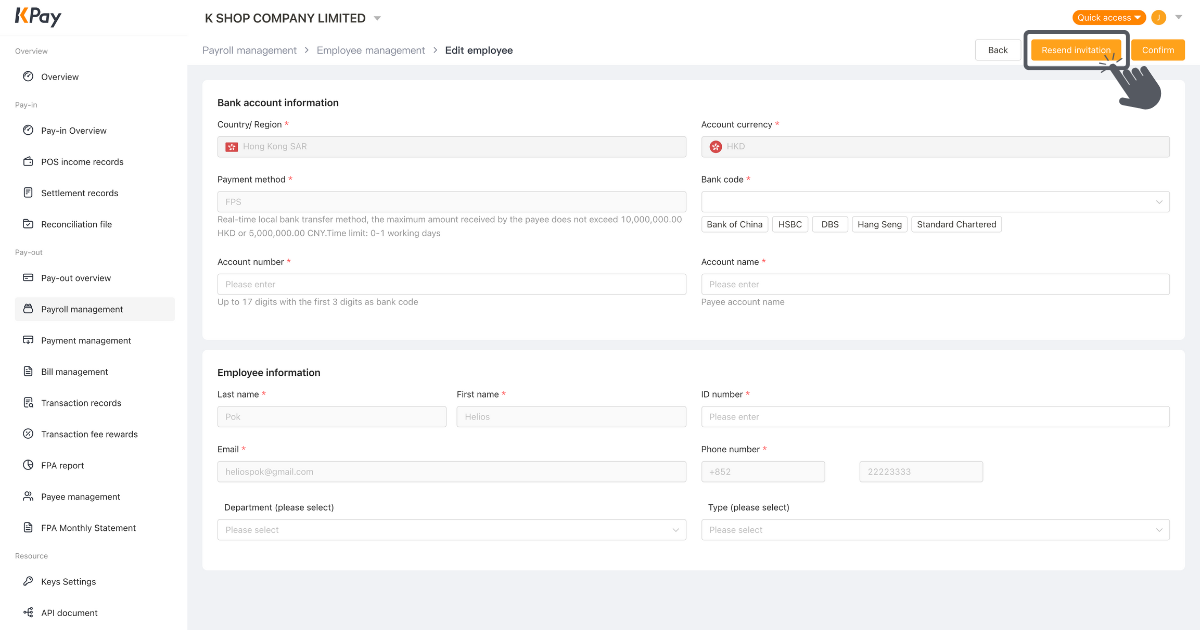
Step 6: Fill in the information and click “Resend invitation”.
Method 2: Add employee profile from scratch
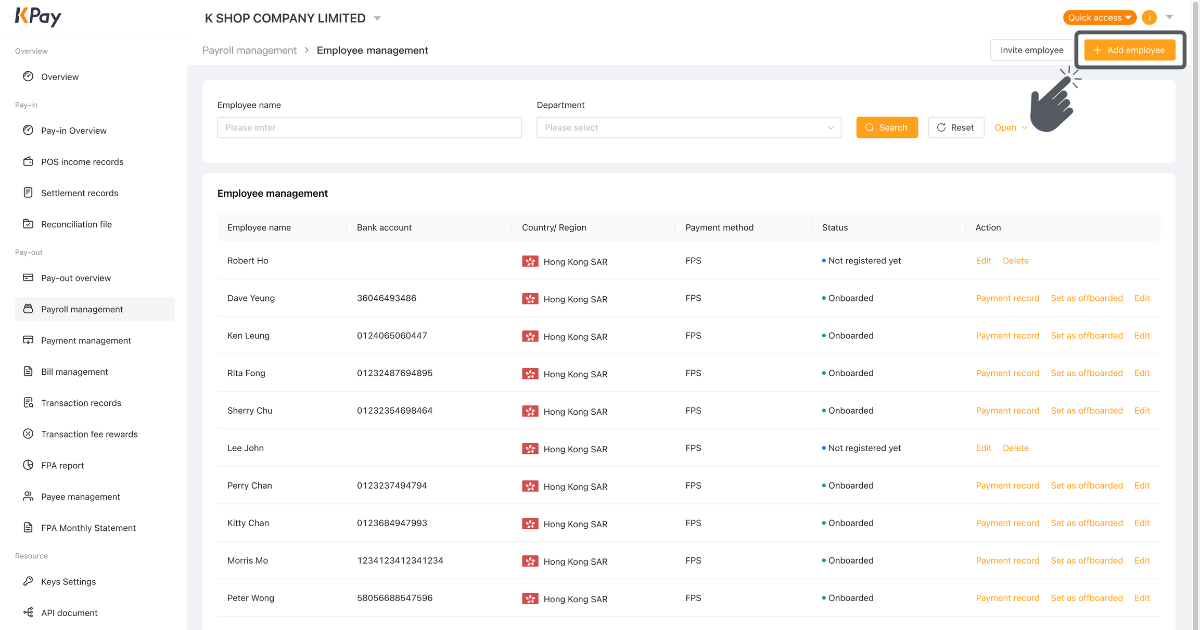
Step 1: Click “Add employee” on the “Employee management” page.
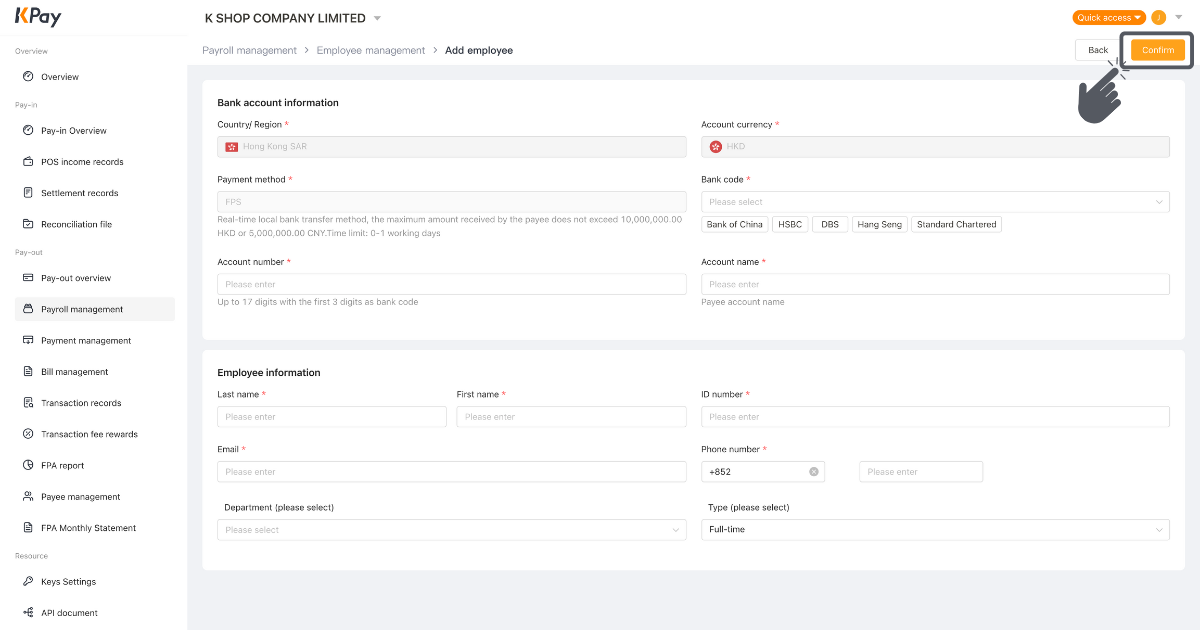
Step 2: Fill in the information required and click “Confirm”.
If you encounter any issues when using the Payroll Management feature, please contact us at 3706 7828 during business hours (Monday - Sunday 10AM - 10PM).
Important Notes
Adding Employee Profile via KPay App
In KPay App, you can add an employee profile in the following three ways.
Method 1: Send an invitation link to employee
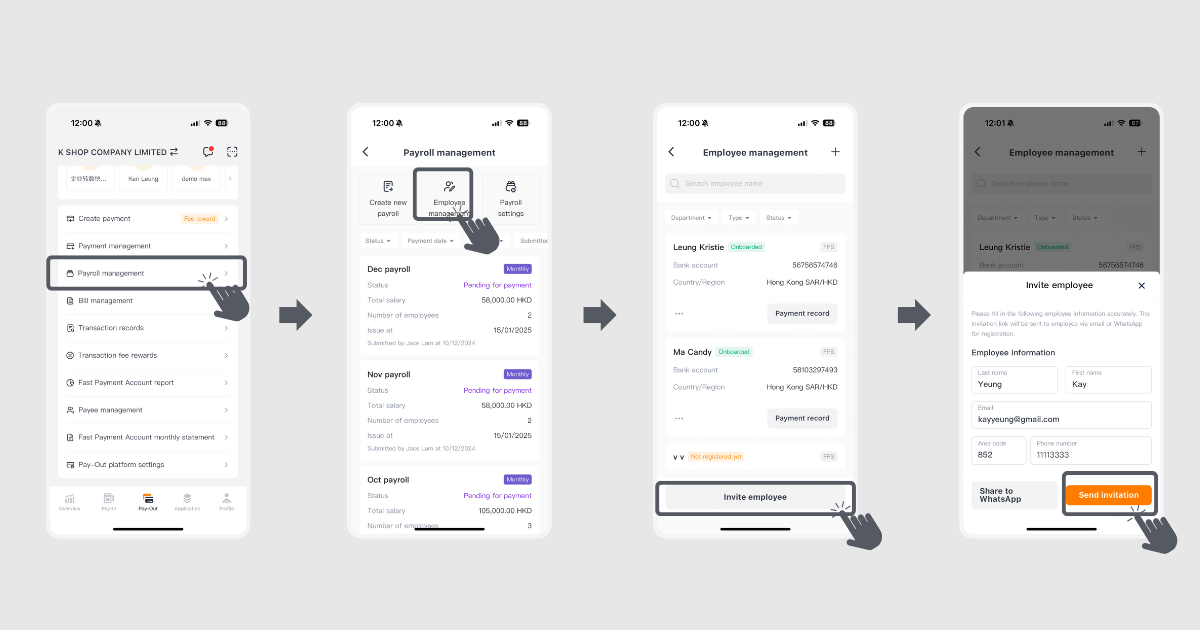
Step 1: Enter the “Pay-Out” page and click “Payroll management”.
Step 2: When you add a new employee for the first time, click “Payee management” in the previous page or click “Employee management” here.
Step 3: Click “Invite employee”.
Step 4: Fill in the information and click “Send invitation” to send via email. Alternatively, you can click “Share to WhatsApp” to send via WhatsApp.
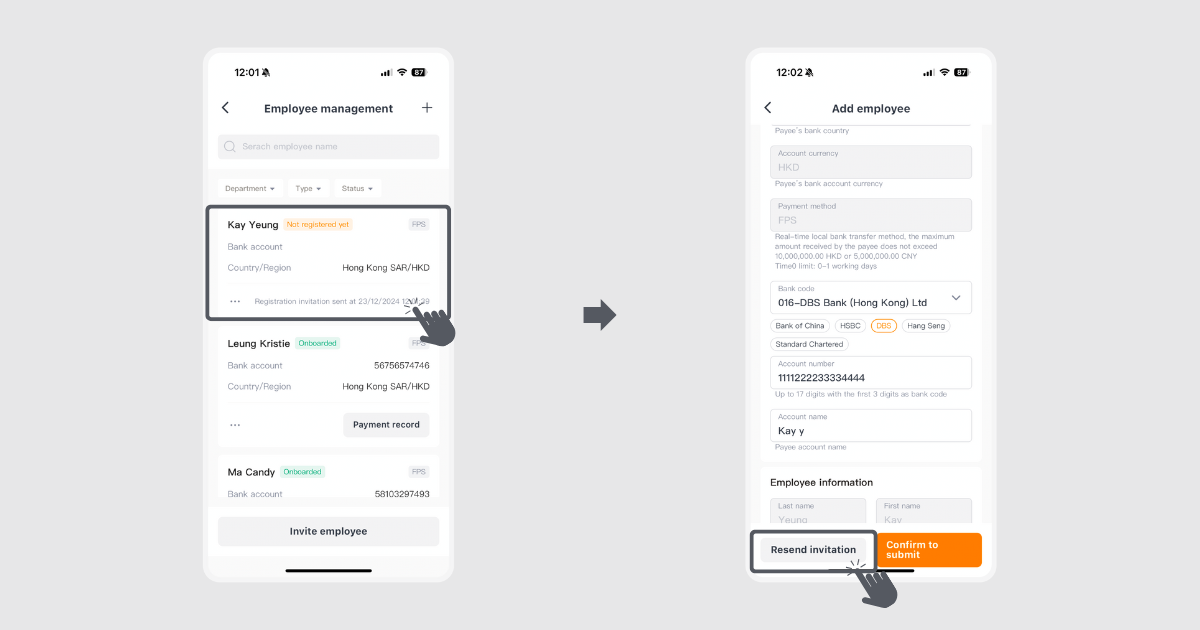
Step 5: The invitation link is valid for 24 hours. If the employee does not complete the registration within the period, you can click the relevant profile.
Step 6: Click “Resend invitation” to share a new link.
Method 2: Add employee profile from scratch
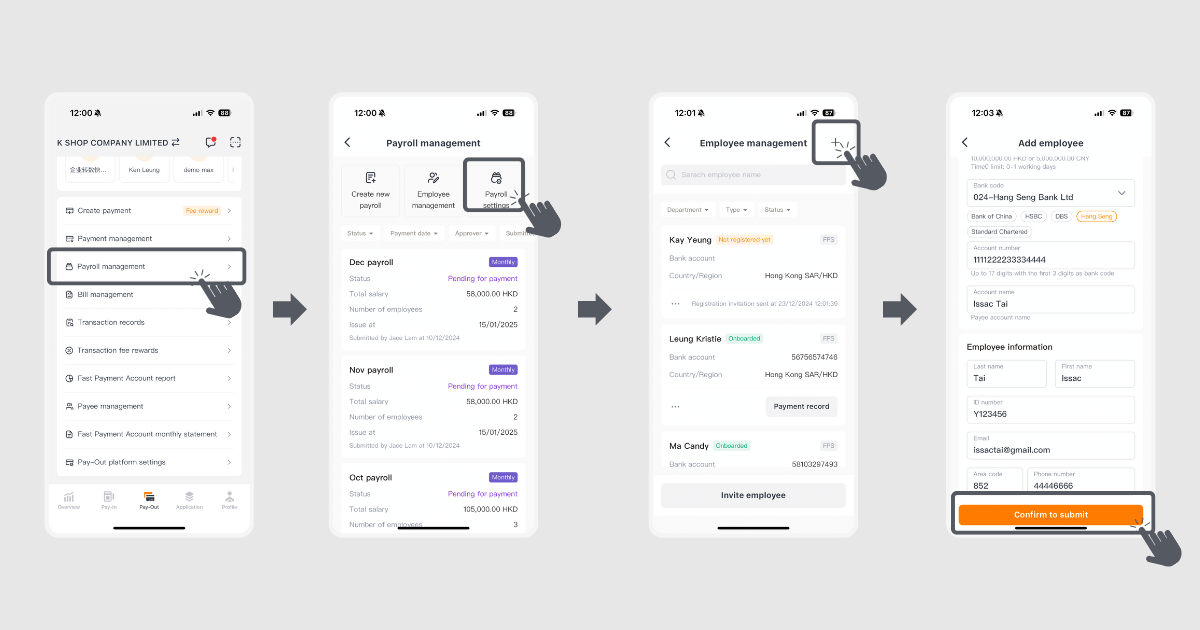
Step 1: Enter the “Pay-Out” page and click “Payroll management”.
Step 2: When you add a new employee for the first time, click “Payee management” in the previous page or click “Employee management” here.
Step 3: Click the “+” button on the top right corner.
Step 4: Fill in the required information and click “Confirm to submit”.
Method 3: Set an existing payee as employee
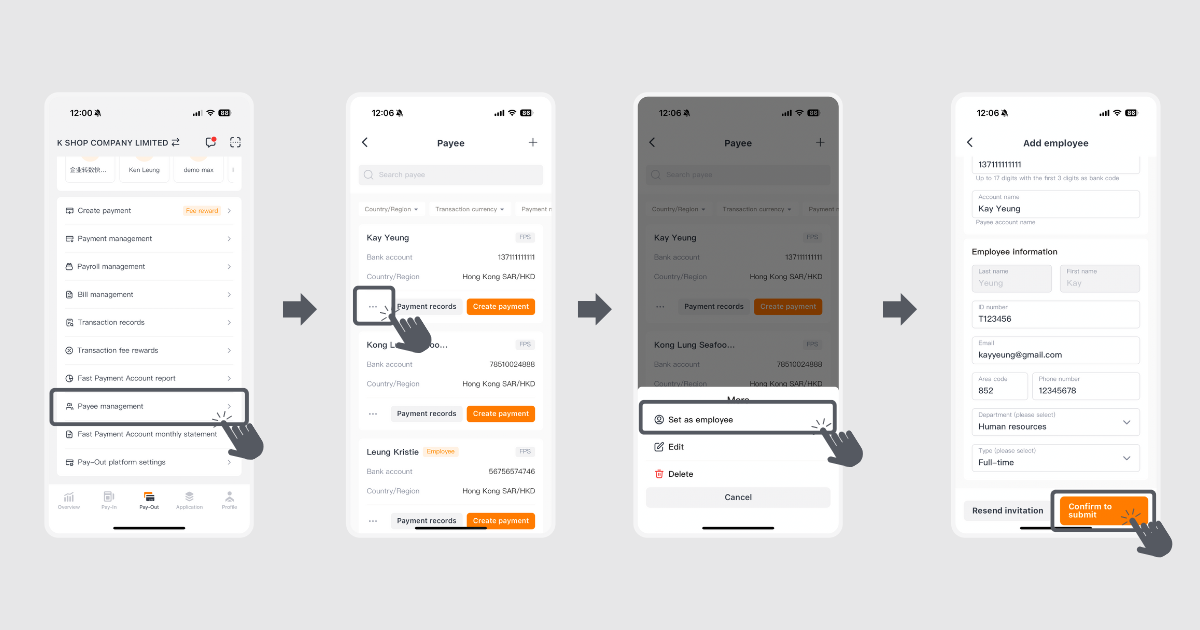
Step 1: Click “Payee management” on the “Pay-Out” tab.
Step 2: Choose the payee you want to set as employee, and click “...”.
Step 3: Click “Set as employee”.
Step 4: Fill in the information and click “Confirm to submit”.