You can now create a new payroll on KPay App and the KPay Dashboard using the Payroll Management feature. This step-by-step guide will show you how to create a new payroll for you to manage your staffs' payroll with ease.
Product Tutorial
How to Create New Payroll

12 December 2024

3 min read


KPay Editorial Team

If you encounter any issues, please contact us at 3706 7828 during business hours (Monday to Sunday, 10AM - 10PM).
Important Notes
Creating a New Payroll via the KPay Dashboard
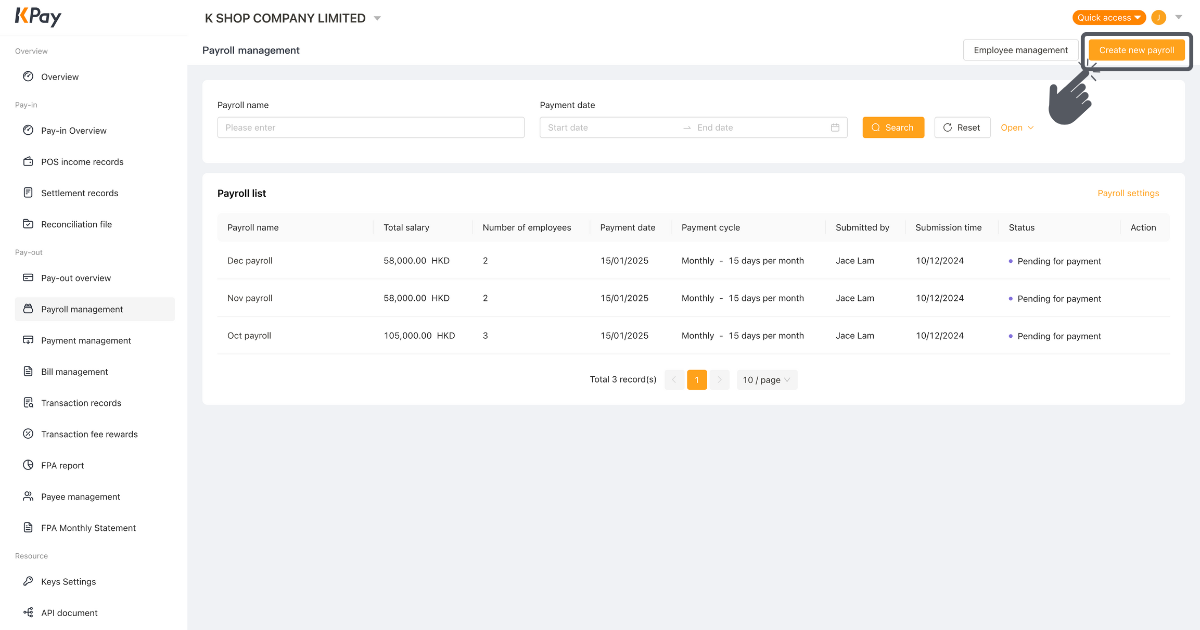
Step 1: Click “Create new payroll” on the “Payroll management” page.

Step 2: Download “Payroll Payment Template” here. Upload the form after filling it out.
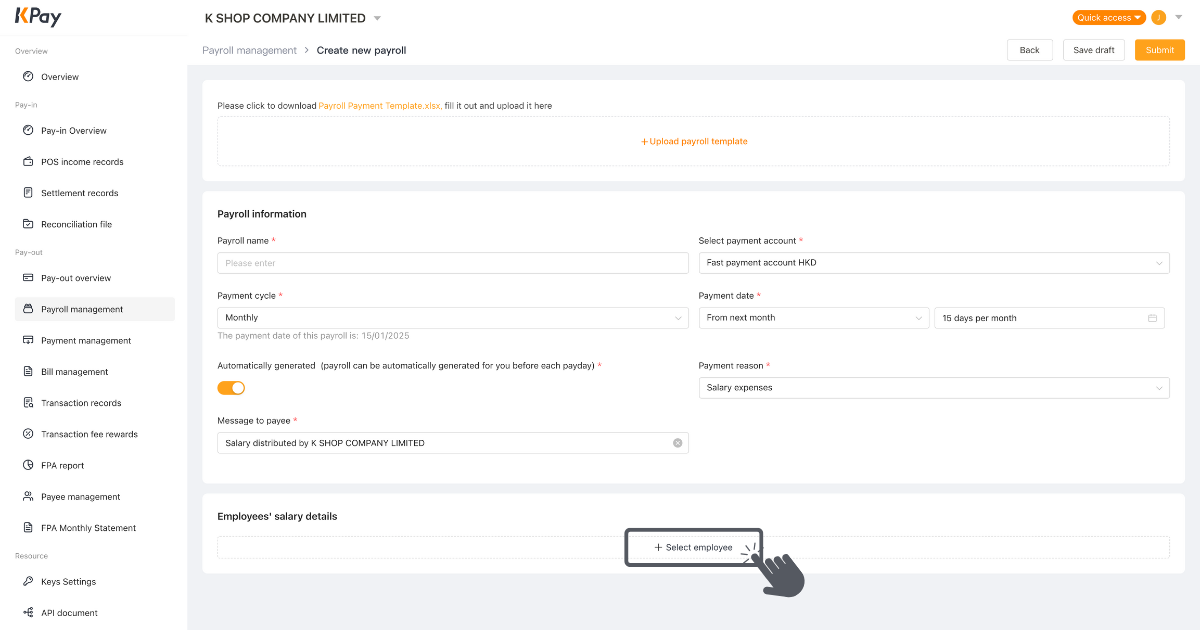
Step 3: Fill in the required information and click “Select employee”.
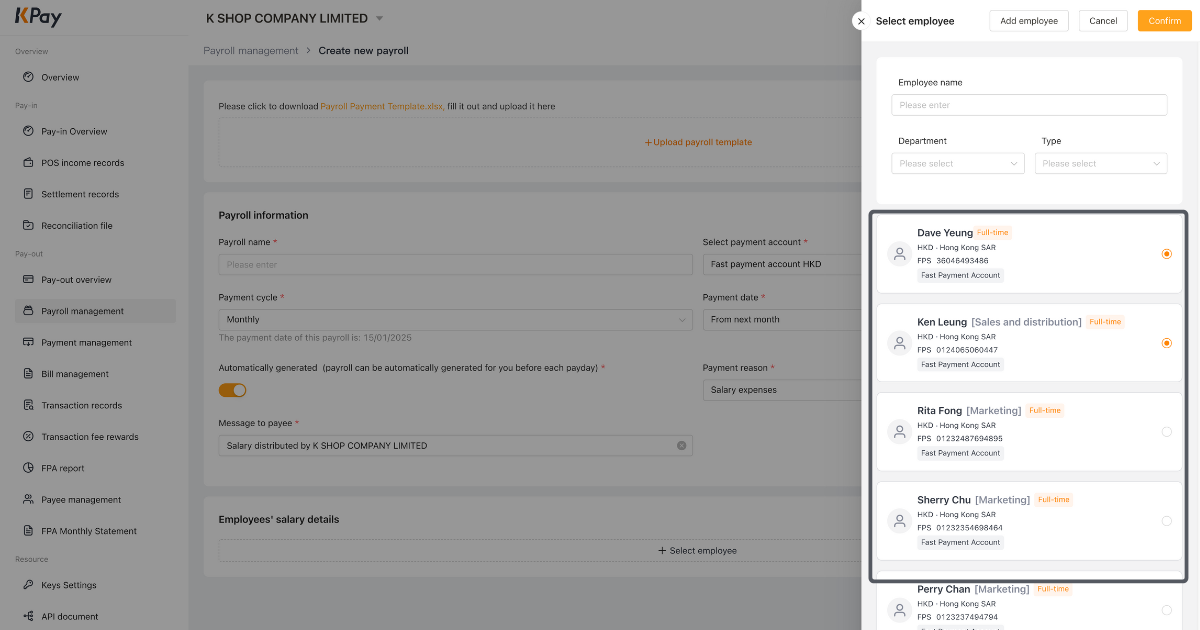
Step 4: Select the employees you want to pay and click “Confirm”.
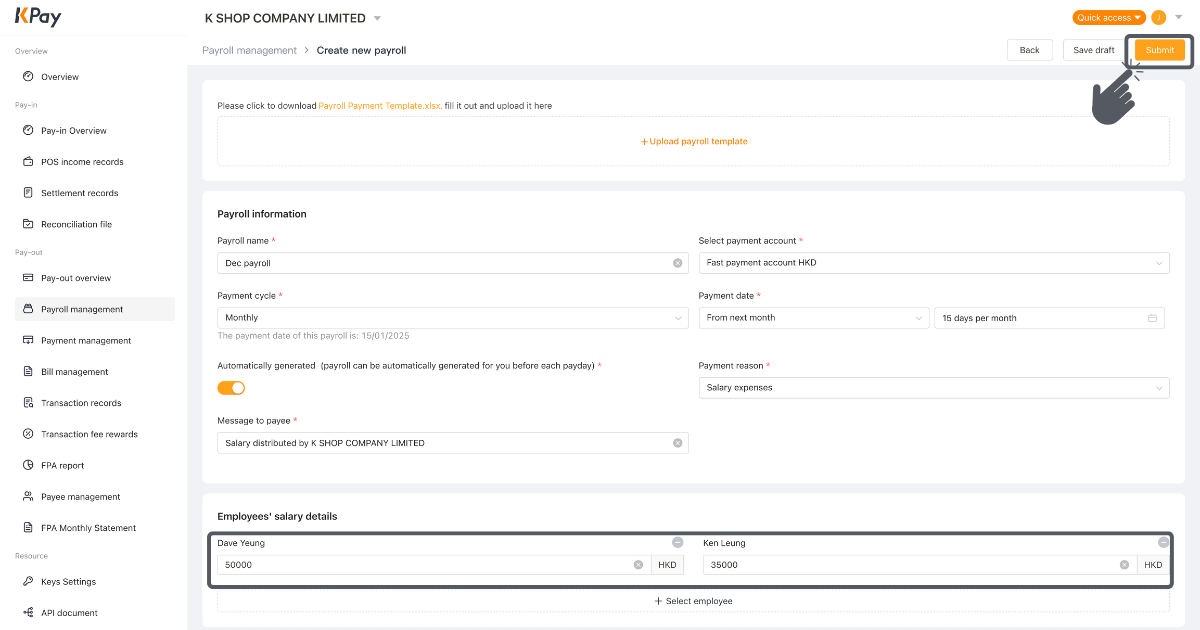
Step 5: Enter the salary amount and click “Submit” or “Save draft”.
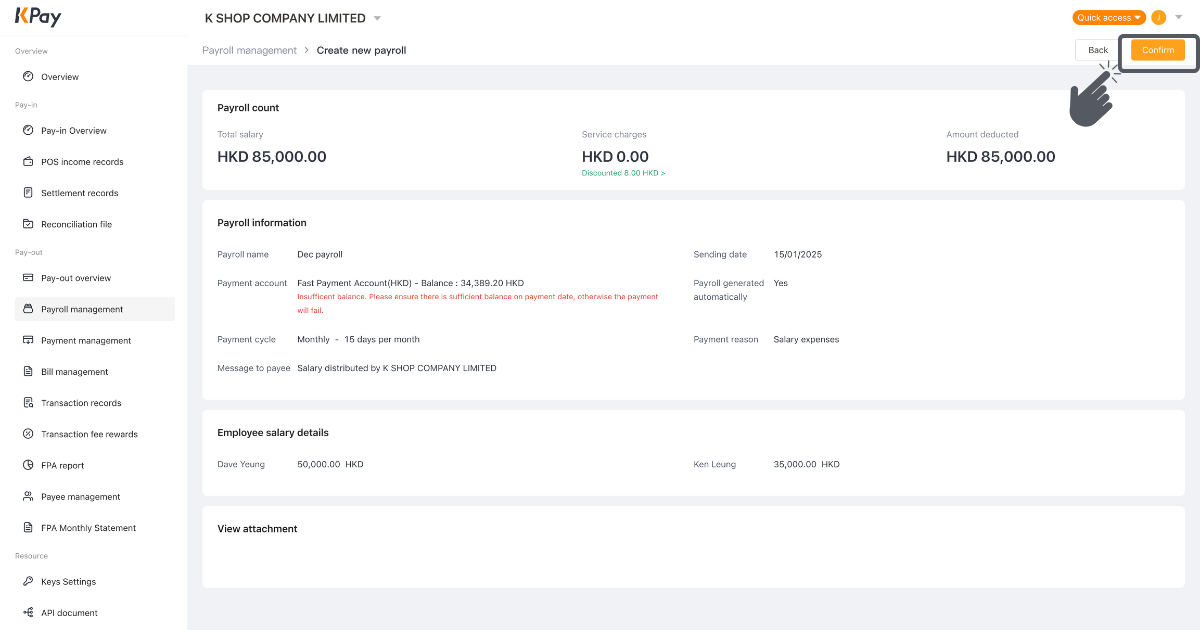
Step 6: After you click “Submit”, review the details and click “Confirm”.
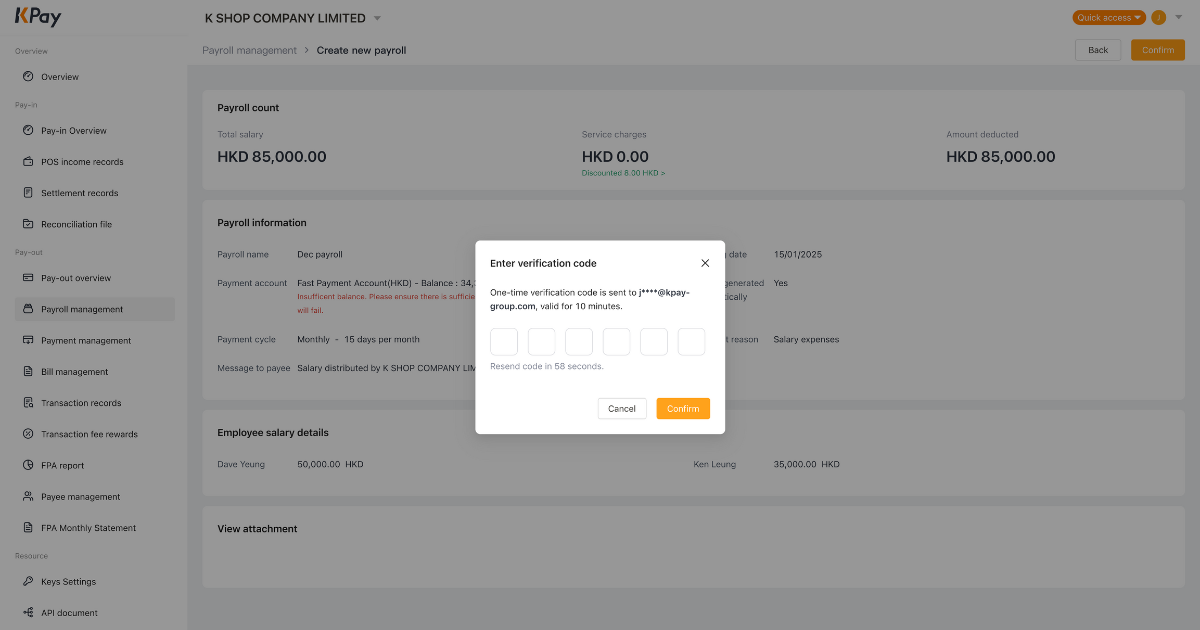
Step 7: Enter the verification code sent to your email and click “Confirm”.
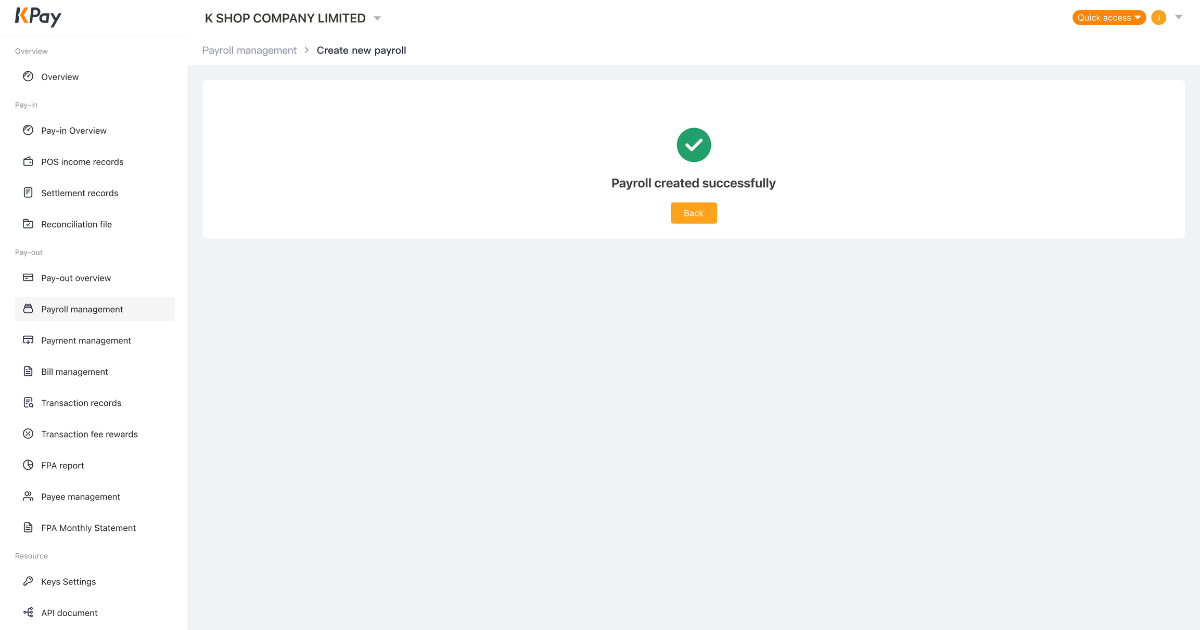
Step 8: The payroll is created successfully.
Step 9: After the payroll is approved, the system will complete the pay-out and send the confirmation to employees automatically.
Creating a New Payroll via KPay App
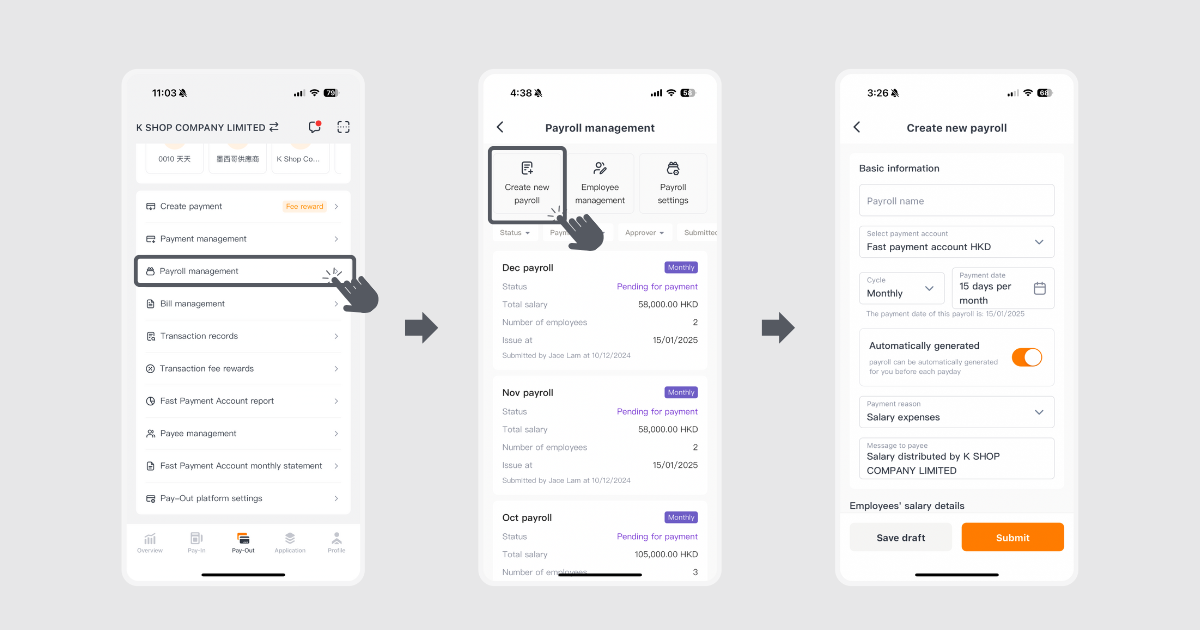
Step 1: Click “Payroll management” on the “Pay-Out” page.
Step 2: Click ‘Create new payroll”.
Step 3: Fill in the required information.
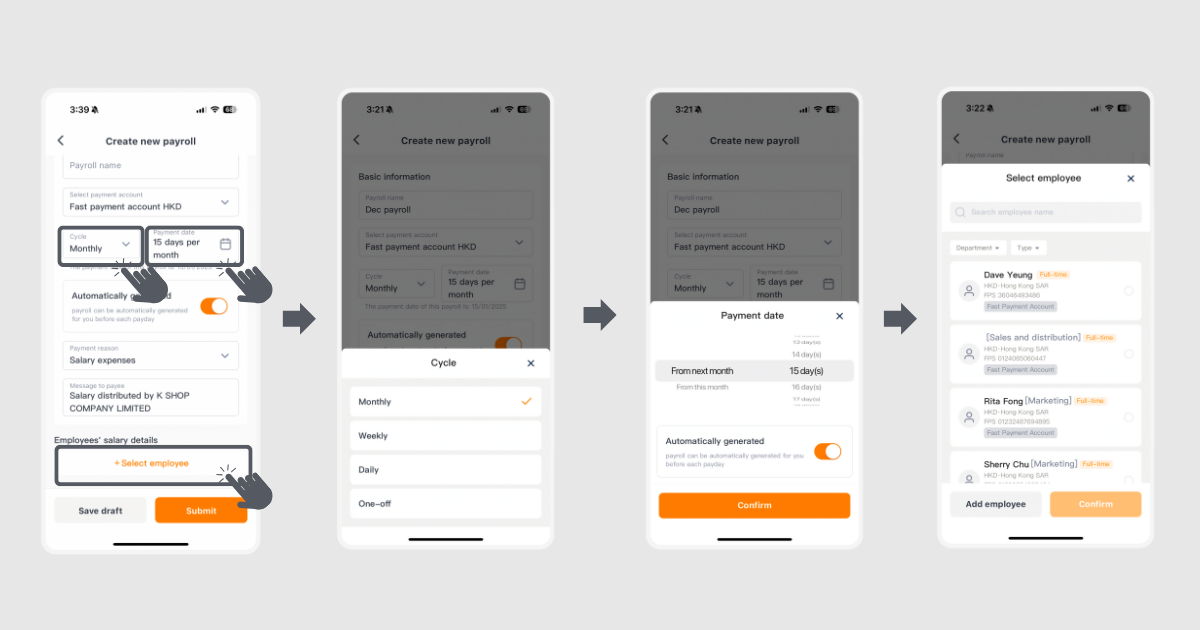
Step 4: Choose your desired payroll cycle, payment date and the employee.
Step 5: Payment cycle options include one-off, daily, weekly, monthly.
Step 6: If you wish to have the payroll automatically generated on a specific date, you can choose “Automatically generated”.
Step 7: For employees, you can either search for them or click their names on the list; or you can add new employees.
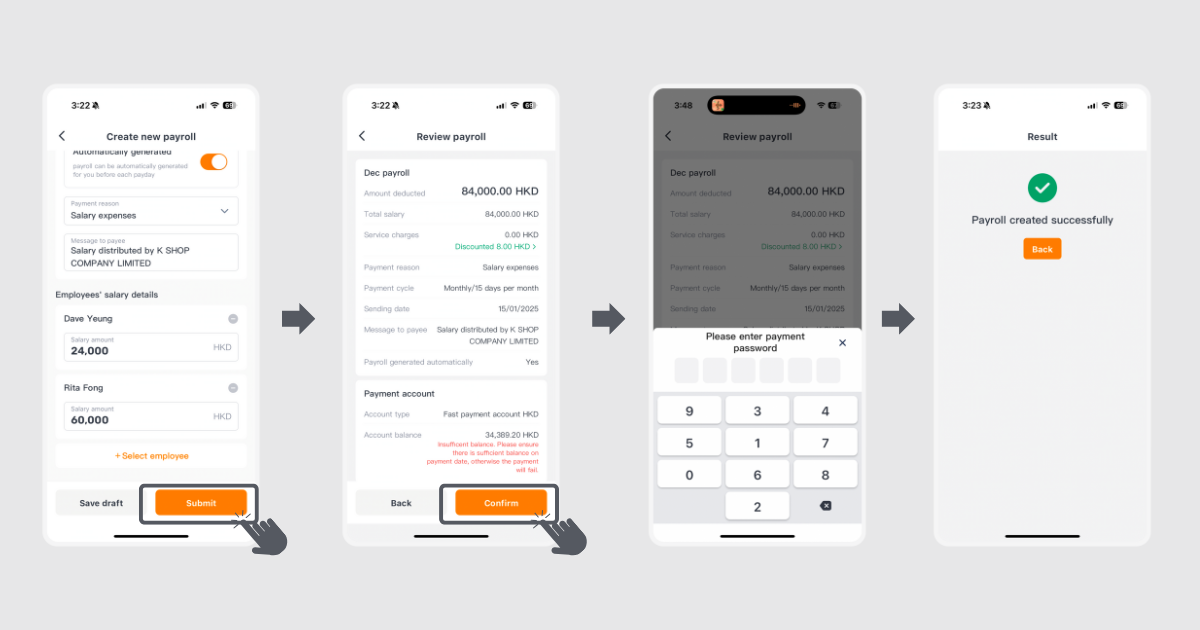
Step 8: Enter the salary of respective employees and click “Submit”.
Step 9: Review the details and click “Confirm”.
Step 10: Enter the 6-digit payment password.
Step 11: The payroll is created.
Step 12: After the payroll is approved, the system will complete the pay-out and send the confirmation to employees automatically.